How to Recover Deleted Partition on Mac?
A deleted partition is recoverable only while its old data remains untouched. Start with the physical disk, save recovered files elsewhere, plus avoid rebuilding the volume too early.
Stop using the affected disk, then scan its physical device with Disk Drill. Preview the found files before paying or recovering, then save everything to another drive. Use Time Machine instead if you already have a clean backup from before the partition vanished.
Do not erase, repartition, reinstall macOS, or create a new volume on the affected space. Those actions can overwrite the partition metadata or file contents you are trying to recover. If the disk clicks or disconnects, power it off.
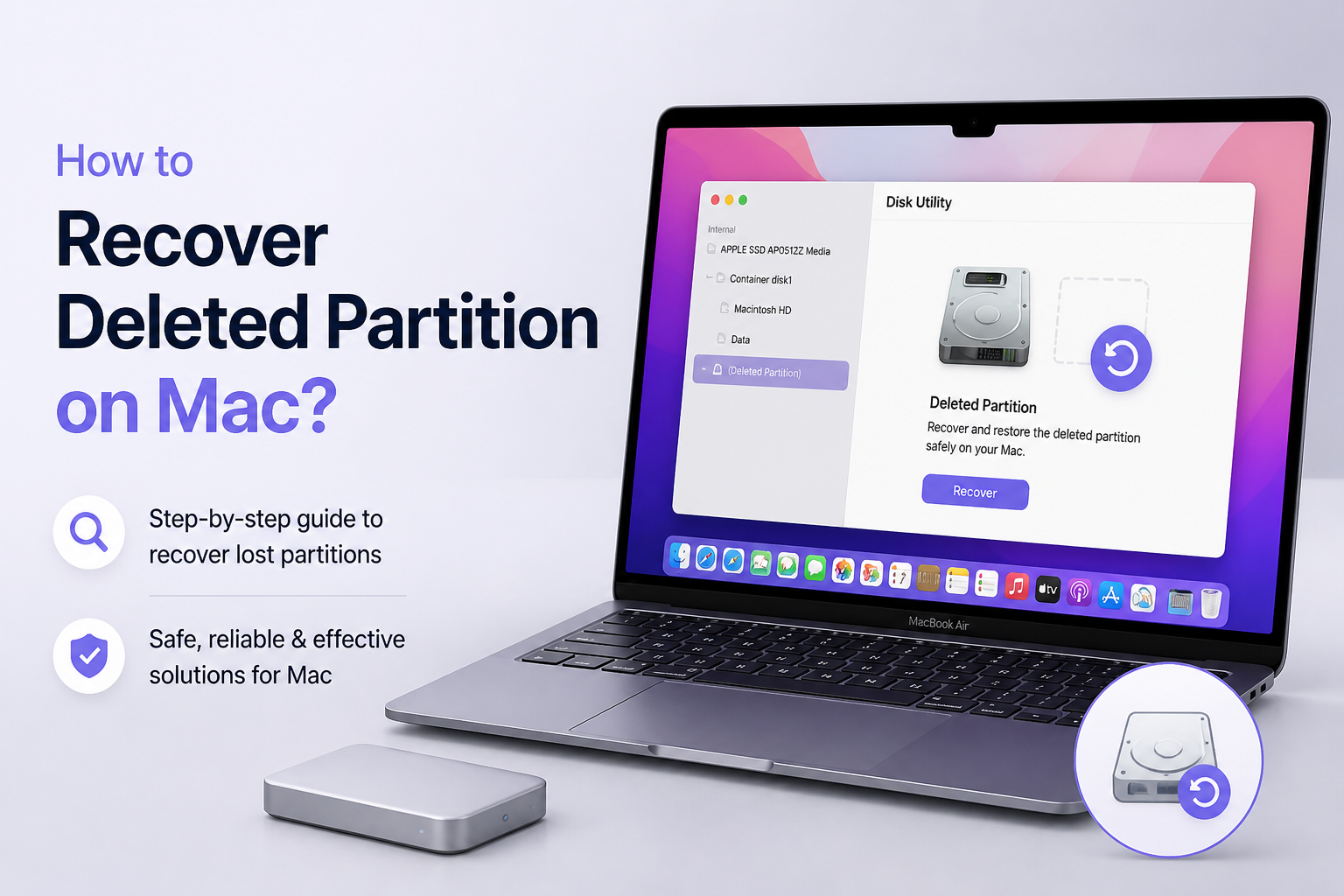
Scan a Deleted Mac Partition → Disk Drill
Searches the full physical disk · Previews found files before recovery · Runs on macOS plus Windows
Top 5 Ways to Recover a Deleted Partition on Mac
01 Scan the Lost Partition With Disk Drill
Best first move when the physical disk still appears in Disk Utility
~15 min
Scan the Lost Partition With Disk Drill
Best first move when the physical disk still appears in Disk Utility
Disk Drill can search the whole physical device for lost partition data, even if the missing volume no longer mounts in Finder. Use this route before creating a replacement partition or erasing anything.
- Stop saving files to the affected disk. If it is external, disconnect it until you are ready to begin.
- Install Disk Drill on a different disk, never the device holding the deleted partition.
- Open Disk Drill, grant the requested macOS permissions, then select the physical device rather than a surviving volume beneath it.
- Click Search for lost data. Let every scan finish, since the lost partition may appear later in the process.
- Open the found partitions or review reconstructed files. Preview several important items to check whether they are readable.
- Select the files you need, click Recover, then save them to a separate healthy drive.

02 Restore the Missing Files From Time Machine
Safest choice when a backup predates the partition loss
~20 min
Restore the Missing Files From Time Machine
Safest choice when a backup predates the partition loss
Time Machine will not normally recreate a deleted partition entry by itself. It can put the files back onto a new healthy volume, which is usually what matters.
- Connect the Time Machine backup disk without erasing or reformatting the affected device.
- Create a new volume on a different healthy disk if you need a destination for the restored files.
- Open the folder where the missing files originally lived, then launch Time Machine through Spotlight.
- Move through the backup timeline to a date before the partition disappeared.
- Select the needed folders or files, then click Restore.
- For a full user-account recovery, open Migration Assistant from Applications > Utilities, then choose the Time Machine option.
03 Run First Aid in Disk Utility
Useful when the partition is present but damaged, unmounted, or missing from Finder
~10 min
Run First Aid in Disk Utility
Useful when the partition is present but damaged, unmounted, or missing from Finder
A volume can look deleted when its file system is damaged or macOS simply failed to mount it. First Aid may restore access, but it cannot undelete a partition entry that has truly been removed.
- Open Disk Utility from Applications > Utilities.
- Choose View > Show All Devices so the physical disk, containers, plus volumes are visible.
- Look for a dimmed volume beneath the affected device. Select it, then click Mount once.
- If it will not mount, select the volume, click First Aid, then confirm with Run.
- Repeat First Aid upward through the storage structure, starting with the volume, then its container, then the physical device.
- If the volume mounts, copy important files to another disk before doing further repairs.
04 Rebuild the Partition Entry With TestDisk
Advanced option for an exact partition match on a stable drive
~30 min
Rebuild the Partition Entry With TestDisk
Advanced option for an exact partition match on a stable drive
TestDisk can search a disk for old partition boundaries, then write a recovered entry back to the partition table. A wrong selection can make the layout worse, so recover files first whenever possible.
- Create a sector-level image of the affected disk if you have enough storage. Work from that image rather than the original when possible.
- Download TestDisk from the official CGSecurity site, extract it, then open Terminal in its folder.
- Run
sudo ./testdisk, choose Create for the log, then select the affected physical disk. - Accept the detected partition-table type unless you know it is incorrect. Choose Analyse, followed by Quick Search.
- Highlight a found partition, press P to list its files, then verify names plus folder contents. Use Deeper Search if the correct layout is absent.
- Choose Write only if the start position, size, file listing, plus neighboring partitions match the old layout exactly. Restart the Mac afterward.
05 Send the Drive to a Recovery Lab
Right choice for unstable hardware or irreplaceable data
1–10 days
Send the Drive to a Recovery Lab
Right choice for unstable hardware or irreplaceable data
DIY scans are a poor gamble when a disk clicks, repeatedly disappears, runs extremely slowly, or contains the only copy of critical work. A recovery lab can image unstable media with equipment unavailable in normal Mac software.
- Power off the drive or Mac. Do not keep reconnecting it to see whether it works this time.
- Write down what happened, including any erasure, partition change, fall, liquid exposure, noises, or repair attempts.
- Contact a lab that offers an evaluation plus a written quote before recovery begins.
- Ask whether the lab performs the work in-house, whether opening an HDD is done in a controlled clean environment, plus how recovered data is returned.
- Pack an external drive in an anti-static bag with firm padding. For a MacBook with soldered storage, send the whole computer if the lab requests it.
- When the recovered files arrive, open a sample from each important folder before approving the result.
How to Tell Whether the Mac Partition Is Deleted or Merely Unmounted
Open Disk Utility, then choose View > Show All Devices. If the volume appears beneath its container but is gray, try mounting it before treating it as deleted. If only empty space appears where the volume used to be, the partition entry may be gone.
If the physical device itself is missing, test another cable, port, enclosure, or Mac. Software cannot scan storage that macOS never detects.
When to Stop DIY Mac Partition Recovery
Stop if an HDD clicks, spins down repeatedly, or vanishes during reads. The same rule applies to an SSD or USB device that becomes unusually hot, disconnects, or reports the wrong capacity.
Also pause if FileVault encryption is involved but you lack the password or recovery key. A scan may locate encrypted sectors without producing usable files.
Choose a Mac Partition Recovery Method
Pick based on whether the problem is deletion, corruption, backup loss, or failing hardware.
| Method | Best for | Time | Success rate |
|---|---|---|---|
| 1. Scan the Lost Partition With Disk Drill TRY FIRST | A deleted volume on a readable disk | ~15 min | ● 82% |
| 2. Restore the Missing Files From Time Machine | Files covered by an older backup | ~20 min | ● 95% |
| 3. Run First Aid in Disk Utility | A present volume that will not mount | ~10 min | ● 65% |
| 4. Rebuild the Partition Entry With TestDisk | Recovering a verified partition boundary | ~30 min | ● 58% |
| 5. Send the Drive to a Recovery Lab | Unstable or physically damaged storage | 1–10 days | ● 72% |
Which Mac Partition Recovery Method Should You Use?
Start with Disk Drill when the device is stable, visible in Disk Utility, plus missing its old partition. It lets you scan the physical disk, inspect found partitions, then preview files before copying them elsewhere. Choose Time Machine when a backup already contains the lost data, First Aid for a volume that still exists but will not mount, or a recovery lab for unstable hardware.
Recover the files to a separate disk before attempting to recreate, resize, or repair the missing partition.