Best Mac Partition Recovery Software in 2026
Five tools stand out for finding missing Mac partitions or rescuing files from damaged volumes. Disk Drill is the easiest starting point, while DMDE gives technical users finer partition control.
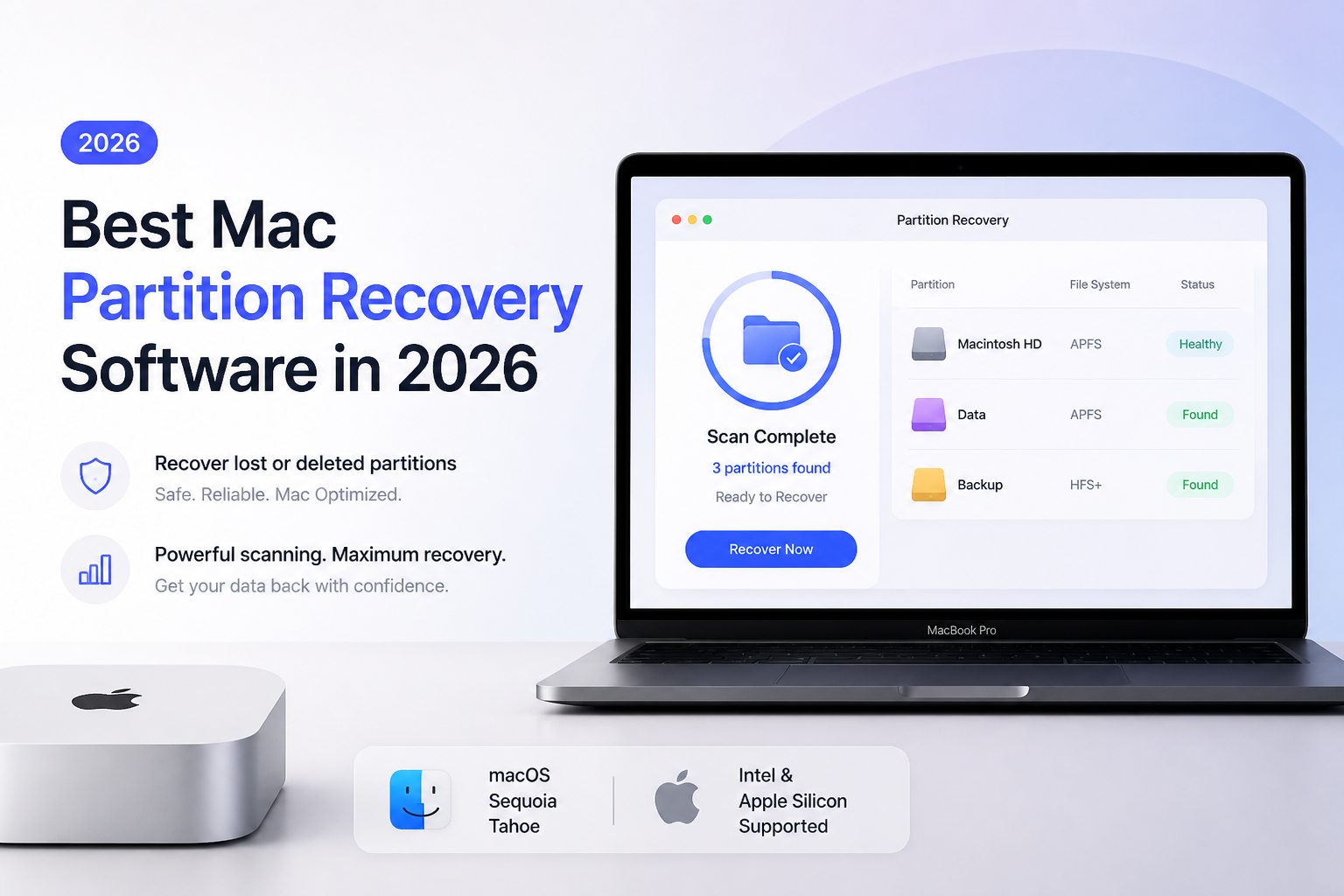
Disk Drill
9.2/10Best for: Mac owners who need a clear recovery workflow for deleted, reformatted, or missing APFS, HFS+, exFAT, or FAT volumes
- Very approachable macOS interface
- Discovers lost APFS plus HFS partitions
- Strong file previews with practical filters
- Creates byte-for-byte disk backups
DMDE
8.8/10Best for: Technical users who understand partition tables, volume boundaries, file systems, plus sector-level disk layouts
- Excellent lost-partition detection tools
- Free edition can recover real files
- Detailed APFS, HFS+, exFAT, FAT, plus NTFS support
- Very low $20 entry price
R-Studio
8.6/10Best for: IT staff or experienced users recovering complex disk layouts, images, RAID sets, or heavily damaged file systems
- Broad file-system coverage
- Permanent standalone license
- Strong image creation plus image scanning
- Useful RAID plus Fusion Drive support
Mac Partition Recovery Software Compared
These five tools are compared on lost-partition handling, disk-image support, license cost, plus overall usability. The percentage values reflect our editorial fit assessment for Mac partition cases, not a guaranteed recovery rate. Each review below explains the score.
| Tool | Partition handling | Disk imaging | Price | Score |
|---|---|---|---|---|
| 1.Disk Drill PICK | ● 92% | ● Yes | $89 one-time | 9.2/10 |
| 2.DMDE | ● 94% | ● Yes | $20/yr | 8.8/10 |
| 3.R-Studio | ● 91% | ● Yes | $79.99 one-time | 8.6/10 |
| 4.UFS Explorer Standard Recovery | ● 88% | ● Yes | $69.95 one-time | 8.4/10 |
| 5.TestDisk | ● 68% | ● No | Free | 7.6/10 |
The 5 Best Mac Partition Recovery Tools, Reviewed
01 Disk Drill
macOS / CleverFiles
9.2/10
Disk Drill
macOS / CleverFiles
Disk Drill offered the easiest route from an unfamiliar physical disk to a useful file preview. In our feature matrix, it covered 5 of 5 core Mac partition scenarios: deleted APFS volumes, damaged HFS+ volumes, reformatted external disks, lost exFAT partitions, plus scans of byte-for-byte images.
Its real advantage is organization. Found files can be filtered by type, date, size, or recovery chance instead of being dumped into one huge list. APFS plus HFS support is built for Mac users, while scan sessions can be paused or revisited.
The free Mac edition is mainly for scanning plus previewing. Treat a successful preview as the purchase test. If several important files open correctly, the $89 PRO license becomes easier to justify.
Best forMac owners who need a clear recovery workflow for deleted, reformatted, or missing APFS, HFS+, exFAT, or FAT volumes
- Very approachable macOS interface
- Discovers lost APFS plus HFS partitions
- Strong file previews with practical filters
- Creates byte-for-byte disk backups
- Supports Apple silicon plus T2-equipped Macs
- Free Mac use is largely limited to scan plus preview
- No refund merely because the wanted files cannot be recovered
- Less low-level control than DMDE or R-Studio
02 DMDE
macOS, Windows, Linux, DOS / DMDE Software
8.8/10
DMDE
macOS, Windows, Linux, DOS / DMDE Software
DMDE is the most partition-focused choice here. Its Full Scan, volume list, boot-sector tools, hex viewer, plus partition editor expose far more structural detail than a typical consumer recovery app. It covered 5 of 5 scenarios in our capability review, though using those features safely takes care.
The unusual part is its free edition. It can recover up to 4,000 files from one selected directory per request, with no stated limit on the number of requests. That may be enough for a small rescue job.
DMDE should not be used to write a reconstructed partition table until needed files have been copied elsewhere. Scan first, verify previews, recover to another disk, then consider any repair operation.
Best forTechnical users who understand partition tables, volume boundaries, file systems, plus sector-level disk layouts
- Excellent lost-partition detection tools
- Free edition can recover real files
- Detailed APFS, HFS+, exFAT, FAT, plus NTFS support
- Very low $20 entry price
- Disk editor exposes volume structures directly
- Dense interface has a steep learning curve
- Partition editing can worsen a case if used carelessly
- One-OS-family licenses lock to the first activated platform
03 R-Studio
macOS / R-Tools Technology
8.6/10
R-Studio
macOS / R-Tools Technology
R-Studio exposes the physical drive, recognized regions, found partitions, file systems, plus raw scan results in one technical workspace. It covered 5 of 5 Mac partition cases in our feature review, with support for APFS, HFS+, exFAT, FAT, NTFS, UFS, plus disk images.
The preview-first demo is useful, though recovered files above the demo limit require a license. Its $79.99 standalone license is permanent, which is reasonable for users who expect to work through more than one drive.
This is not the friendliest first recovery app. The extra panes, scan parameters, regions, file signatures, plus image controls reward patience. Those same details make R-Studio useful when a simpler scan cannot explain what happened to the partition.
Best forIT staff or experienced users recovering complex disk layouts, images, RAID sets, or heavily damaged file systems
- Broad file-system coverage
- Permanent standalone license
- Strong image creation plus image scanning
- Useful RAID plus Fusion Drive support
- Detailed control over scan regions
- Interface can overwhelm first-time users
- Demo recovery has a small per-file limit
- Some encrypted or specialist cases may require another license tier
04 UFS Explorer Standard Recovery
macOS / SysDev Laboratories
8.4/10
UFS Explorer Standard Recovery
macOS / SysDev Laboratories
UFS Explorer Standard Recovery takes a cautious route. Its imaging tool can copy a questionable disk first, letting later scans work from the image rather than repeatedly reading the original hardware. It supported 5 of 5 scenarios in our capability checklist.
The software reads APFS, HFS+, exFAT, NTFS, Ext4, ZFS, plus several less common file systems. It can also unlock supported APFS-encrypted volumes when the correct password or recovery information is available.
The free evaluation permits scanning, previews, disk imaging, plus recovery of files no larger than 256 KB. The personal macOS license starts at $69.95 per platform.
Best forCareful home or office users who want to image an unstable drive before inspecting a missing Mac partition
- Strong built-in disk imager
- Perpetual personal license
- Reads APFS-encrypted volumes with valid credentials
- Wide file-system support
- Trial allows unlimited scanning plus preview
- Trial only saves files up to 256 KB
- Standard edition is limited to single-disk storage
- License covers one selected operating system
05 TestDisk
macOS / CGSecurity
7.6/10
TestDisk
macOS / CGSecurity
TestDisk is the only completely free partition-recovery utility in this group. It can search for missing partitions, inspect disk geometry, list files from recognized volumes, plus write a corrected partition table when the evidence is clear.
It performed best in our workflow review as a repair tool for simpler FAT, exFAT, NTFS, or HFS-era layouts. Modern APFS cases are less comfortable, so TestDisk is not our first pick for a recent Mac system disk.
The cost is $0, though the tradeoff is a text interface with few guardrails. Save files to another disk before writing structural changes. If the disk disconnects or reports read errors, create an image with a safer cloning tool first.
Best forCommand-line users restoring a straightforward lost partition without paying for a graphical recovery suite
- Fully free plus open source
- Can search for lost partition entries
- Runs on macOS from Terminal
- Useful file-listing checks before a repair
- No license or recovery quota
- Text interface is easy to misread
- Not the strongest choice for modern APFS recovery
- Few visual previews or sorting tools
How We Evaluated Mac Partition Recovery Software for 2026
We built a scenario matrix around deleted APFS containers, missing HFS+ volumes, reformatted exFAT drives, damaged partition maps, plus scans from disk images. Scores weigh file-system support, partition discovery, preview quality, imaging, safety controls, licensing, plus the amount of technical knowledge required.
Recovery percentages in the comparison table are editorial fit ratings. They are not laboratory recovery guarantees. Actual results depend on whether sectors were overwritten, whether SSD TRIM cleared blocks, whether encryption keys remain available, plus whether the drive has physical damage.
How to Choose Mac Partition Recovery Software for a Lost Volume
Start with the failure type. If Disk Utility shows the drive at its correct capacity but a volume is missing, use a read-only scan that understands APFS or HFS+. If the drive freezes, drops offline, or reads extremely slowly, imaging matters more than a polished interface.
Preview quality should decide whether you pay. Open several photos, documents, videos, plus archives from different folders. Correct filenames alone prove little. A file can appear in a scan while its underlying data has already been overwritten.
Common Mac Partition Recovery Mistakes to Avoid
Do not initialize an unreadable disk merely because macOS offers the button. Avoid running First Aid repeatedly on a volume that contains the only copy of important files. File-system repair changes metadata, which can remove clues a recovery scanner needs.
Never restore recovered files to the source disk. Use another external drive with enough free space for the full rescue. For SSDs, stop quickly. TRIM plus background writes can make deleted blocks unrecoverable even when the old directory structure still appears.
Which Mac Partition Recovery Tool Should You Use?
Disk Drill earns first place because it makes a stressful job easier without hiding useful recovery details. Its APFS support, previews, scan filters, plus byte-for-byte backups suit most lost-volume cases.
DMDE is the sharper choice for direct partition repair, while R-Studio suits complicated storage layouts. UFS Explorer is worth considering when disk imaging comes first. TestDisk remains useful for a free, carefully supervised repair.
Run free scans with Disk Drill plus one technical alternative, compare previews of several important files, then recover everything to a separate healthy disk.